There are two kinds of charges in MAPRO: the recurring charges, which are automatically processed by MAPRO at the date and month previously set, and the non-recurring charges, which need to be registered and then processed manually.
Non-recurring charges are bills paid regularly that need to be manually processed because they have variable due dates and amounts. Single charges are also non-recurring, but they are immediately processed at the moment they are registered.
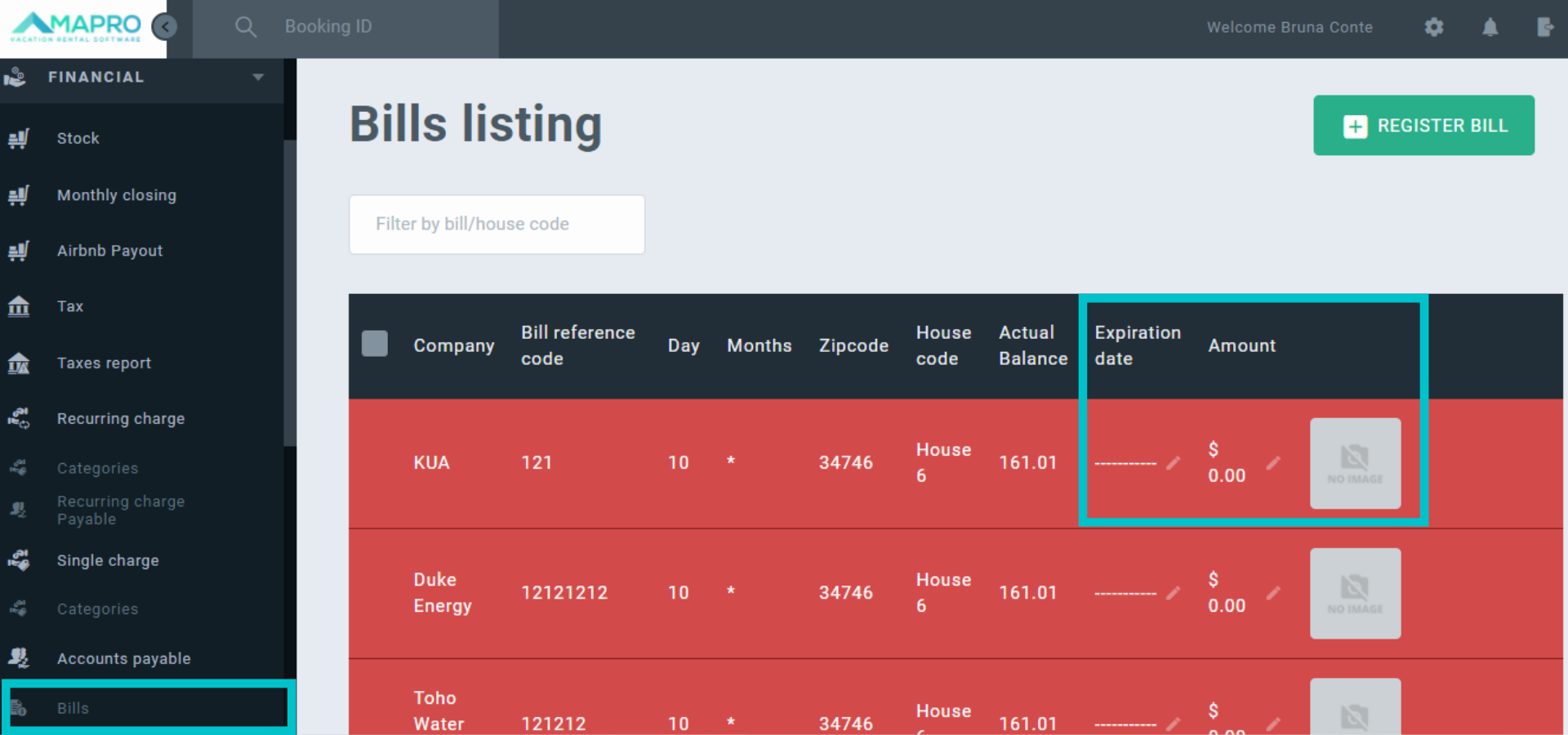
To process non-recurring charges already registered, go to MENU > FINANCIAL > BILLS to access the list of bills. On this screen, click on the fields to inform the due date and amount. You can upload an image of the bill to save it in MAPRO and make it available to the owner in the statement.
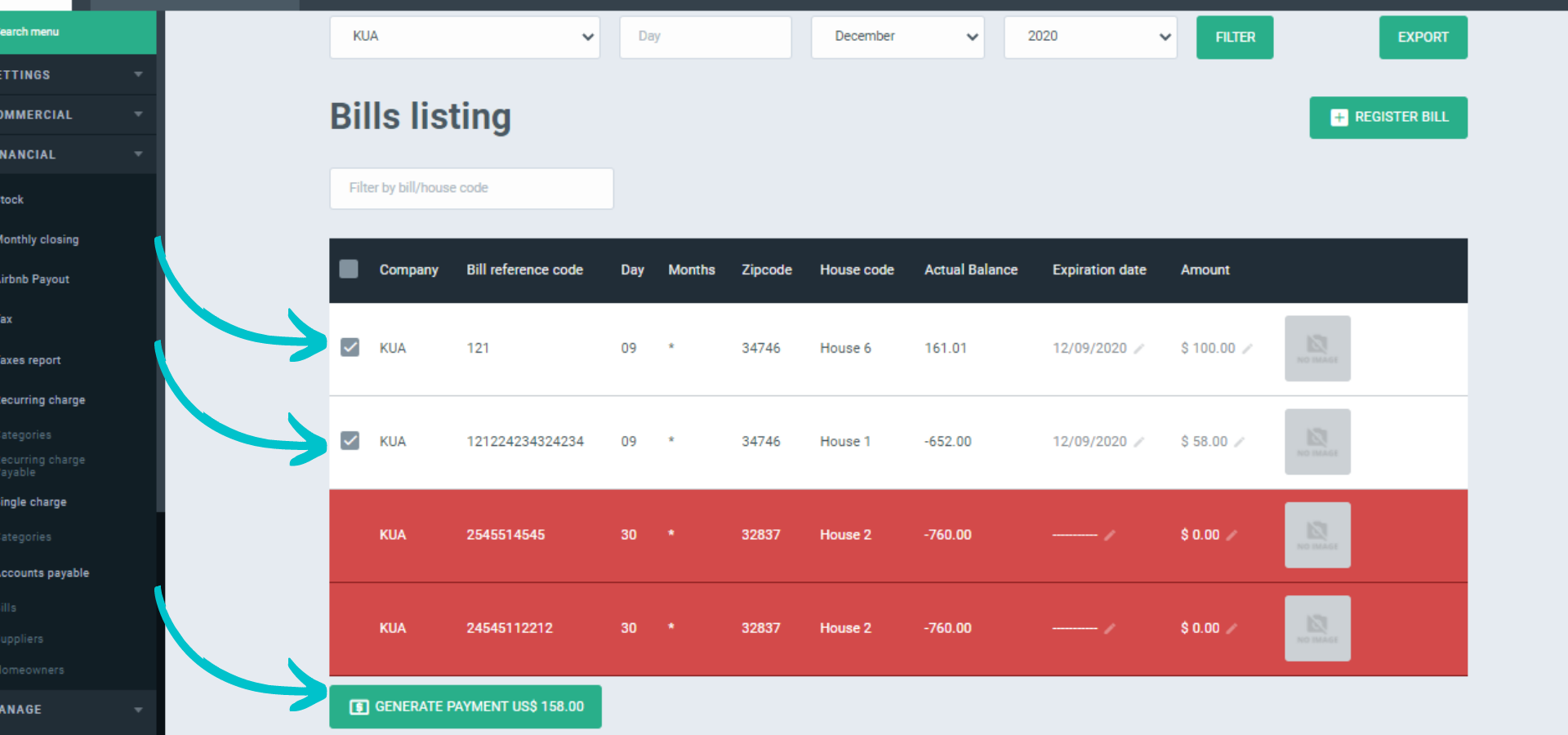
To process the payment after entering the due date, amount, and image, select the bill you will process and click on “Generate Payment” at the bottom of the page. To process more than one or a group of charges, filter the bills by supplier using the fields at the top of the page. After that, select the charges and click on “Generate Payment.”
Important: You can only process groups of charges issued by the same supplier.
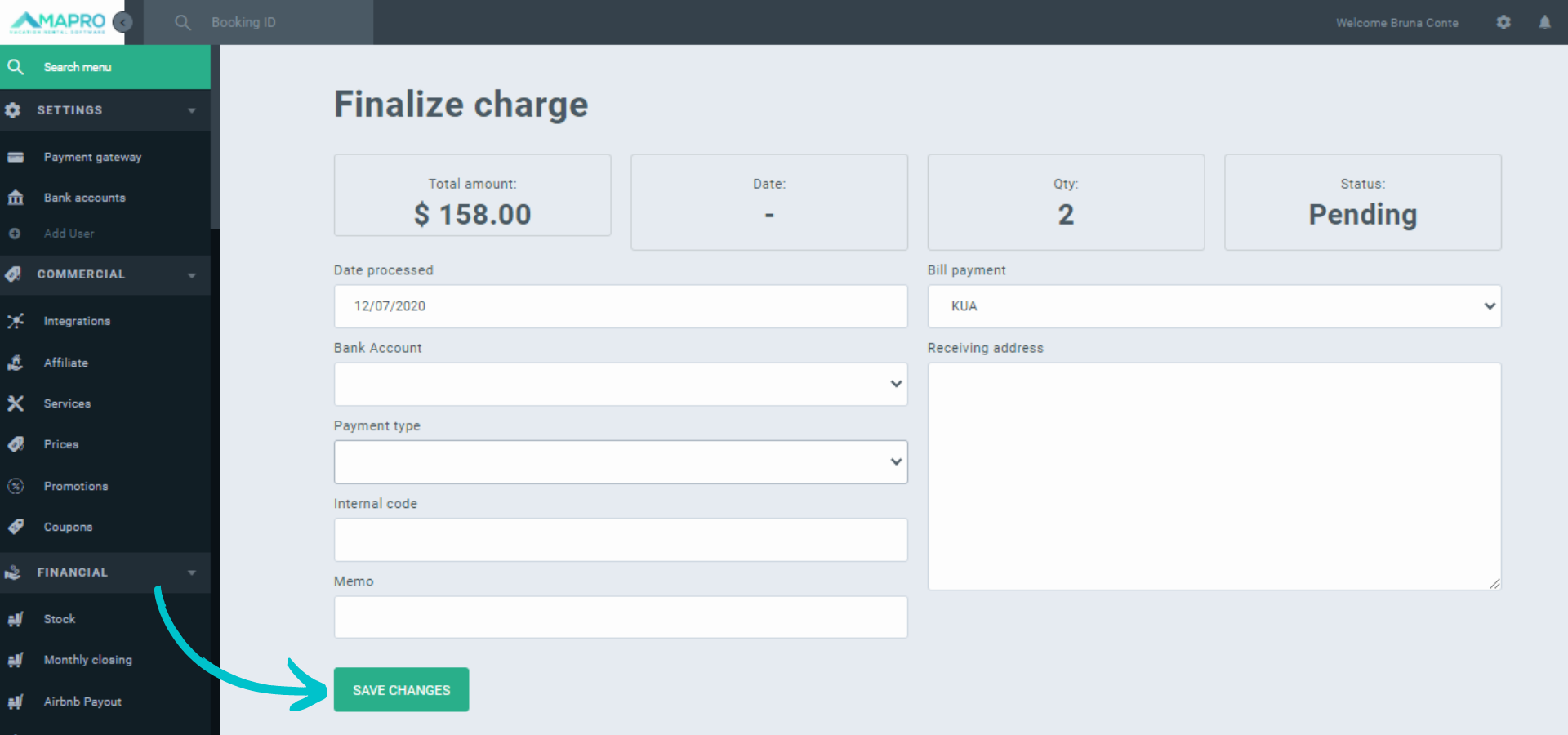
Enter the payment information, like bank account and payment method (credit card, bank transfer, etc.). The field “Internal Code” is optional, and the manager can use it to add any codes or notes useful to its own organization. If you choose to print the check through MAPRO to pay these bills, use the field “Memo” to add notes to the check. Click on “Save” to finish the process.
Important: the date you inform in the “date processed” field is the one shown on the homeowner’s statement as the date you paid the bills.
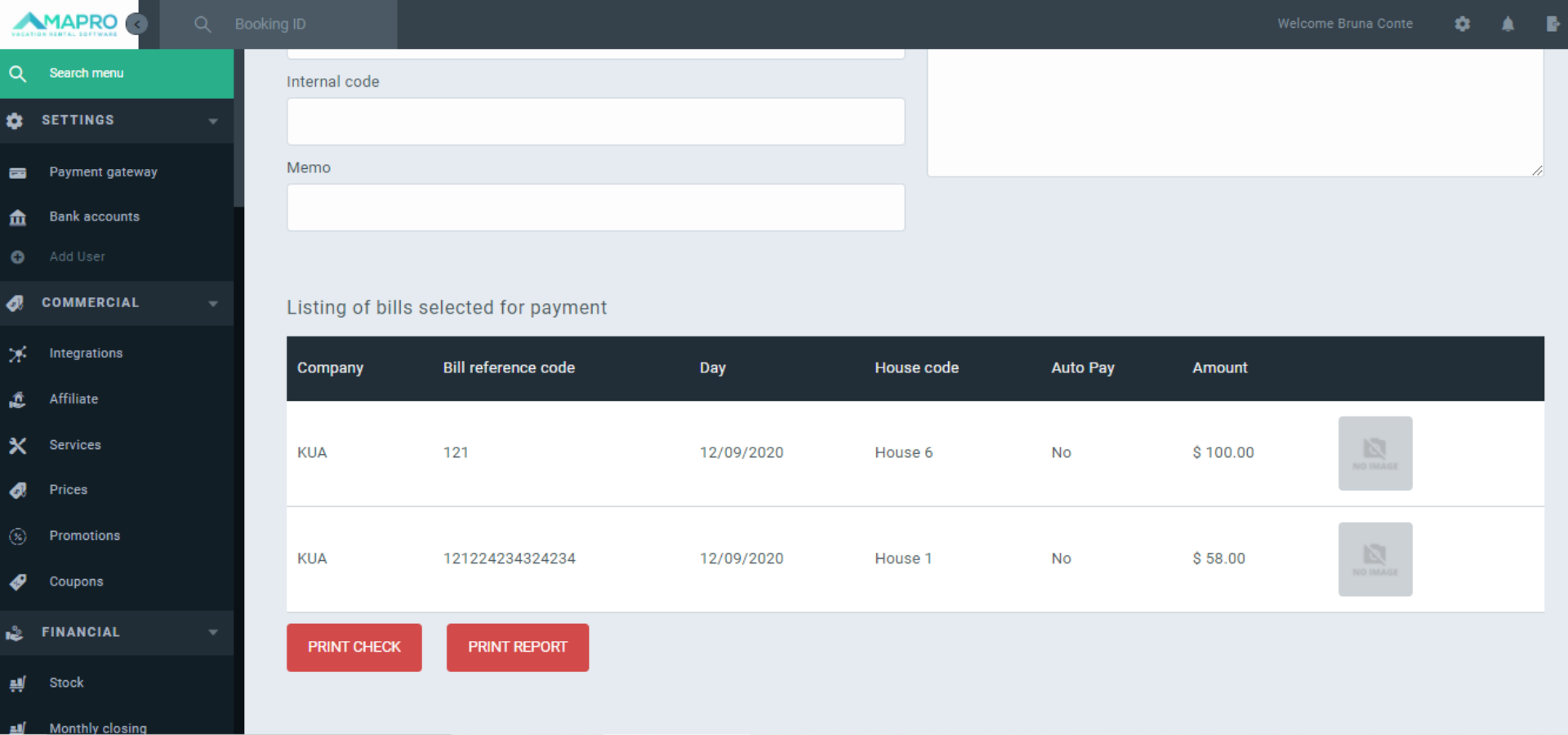
Scroll down to access the fields at the bottom of the page. Check the list of charges you are processing and then click on “Process Payment of $ ___” (confirm the total amount of the charges). The information is immediately available to the homeowner on the statement.
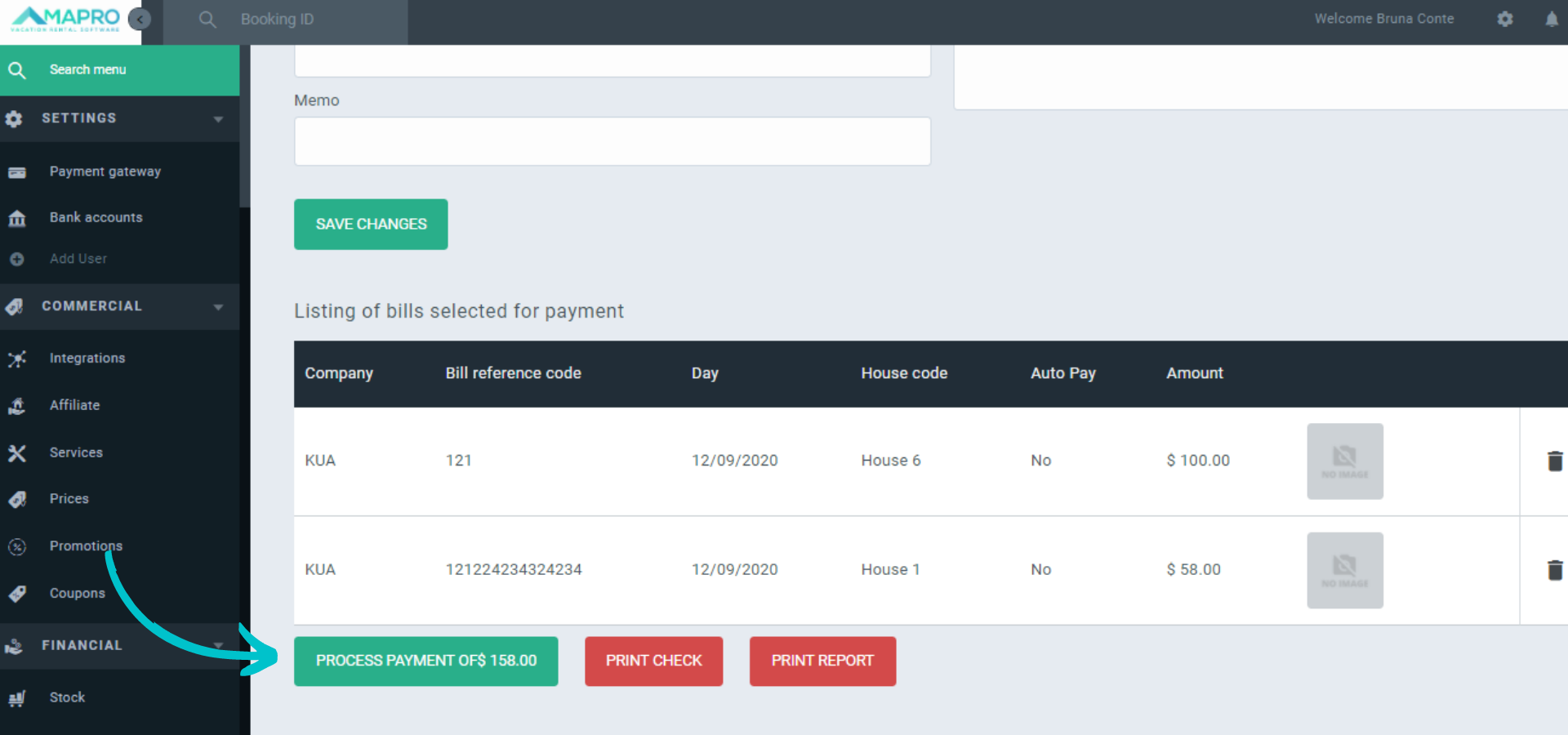
After processing the charges, you can still access on this screen the options “Print Check” and “Print Report”, which only refer to the payments just processed.
Obs: click on “Print Check” to generate a check already filled out with the information to pay your supplier.