
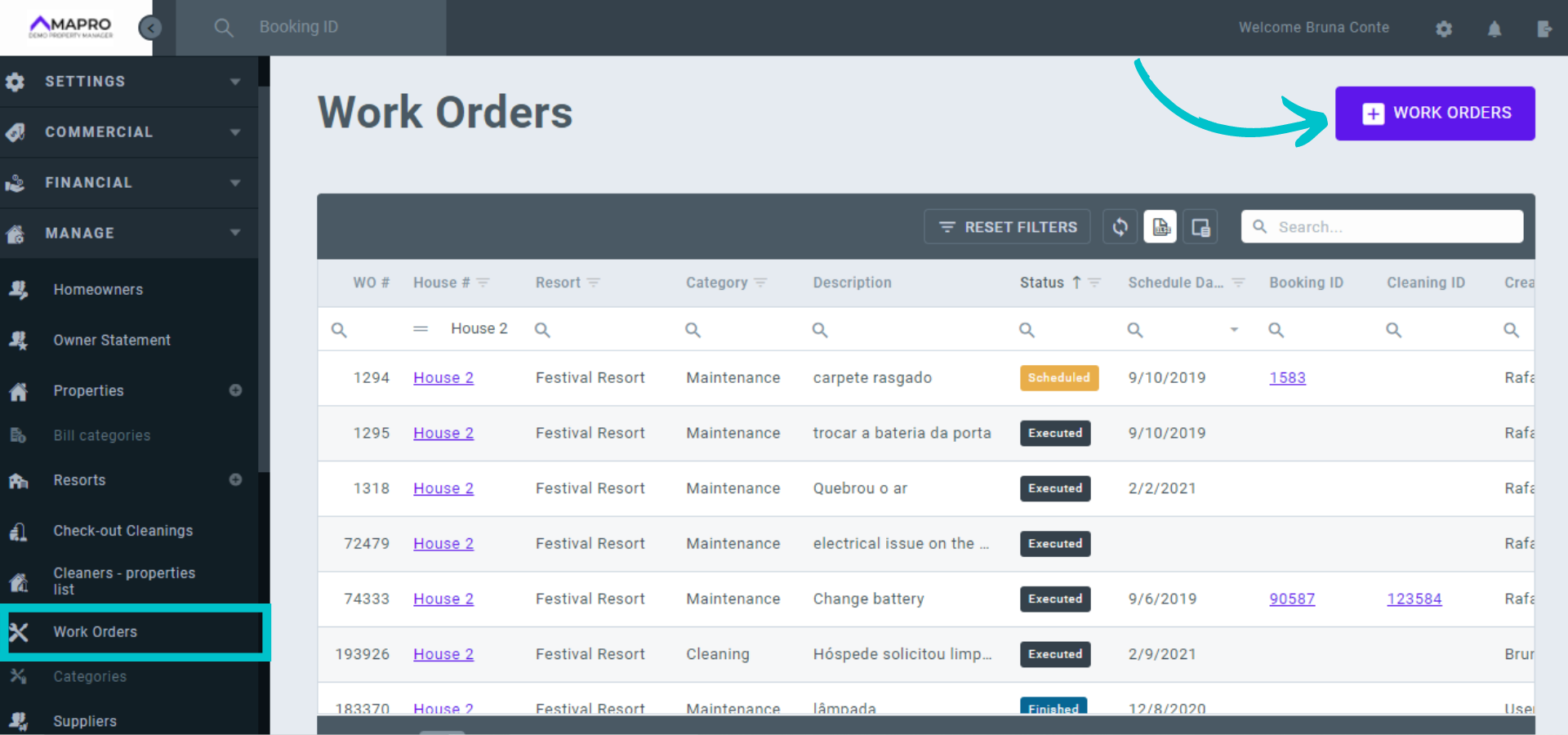
To create a work order, go to MENU > MANAGE > WORK ORDER, and click on "Add Work Order."
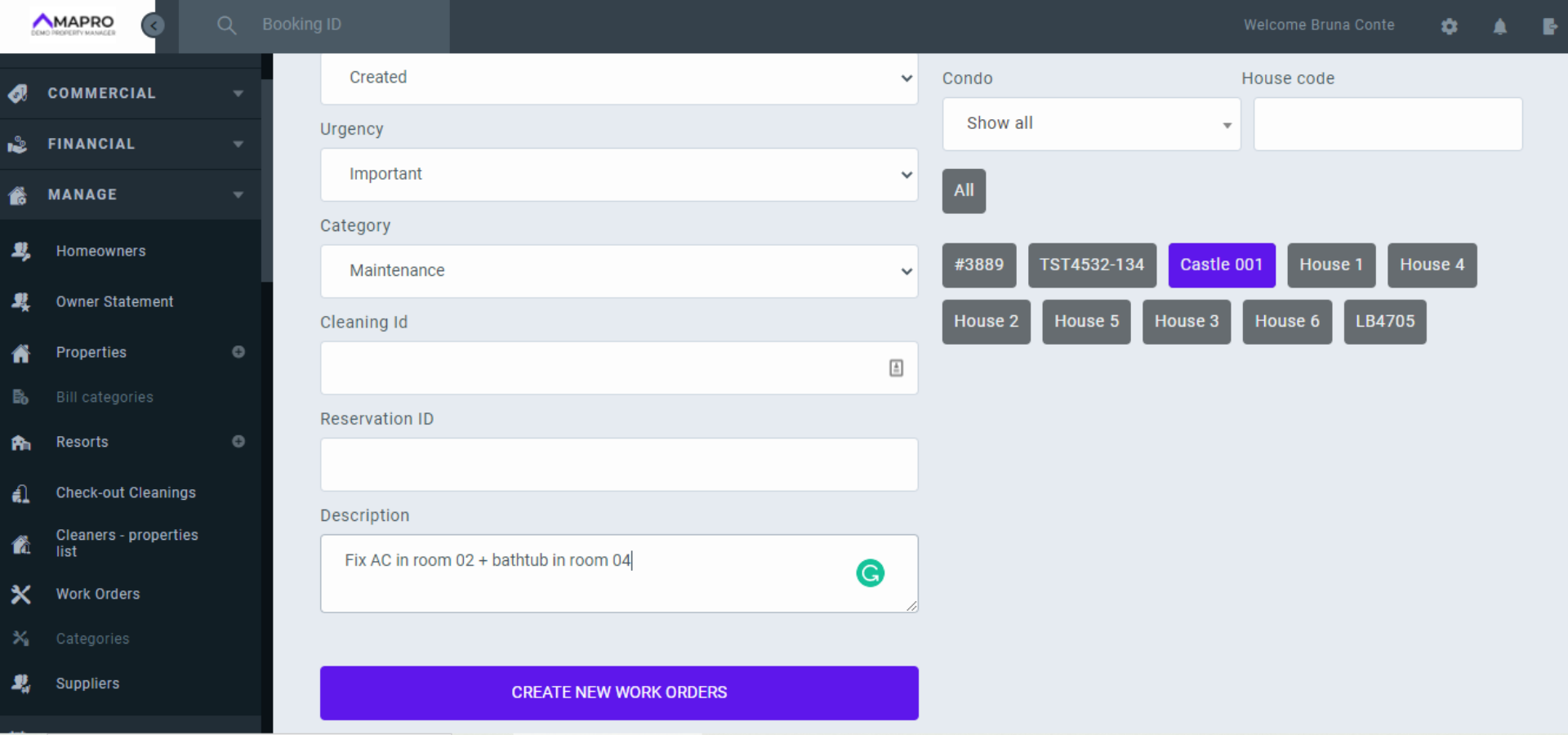
Enter the work order details, following the instructions below:
- Status:
-
-
- Created: when you create a work order to be executed by someone else, and then schedule the order choosing time, date, and the person or company in charge of the task.
- Executed: when the order is created and executed at the same time by the same person.
-
- Urgency: choose the urgency level of the order - normal / important / urgent.
- Category: choose one of the previously registered categories - maintenance / purchase / finance / cleaning - or create a new one (go to MENU > MANAGE > CATEGORIES, and click on "add categories").
- Cleaning ID: attach the check-out cleaning ID to the work order created due to a problem found while cleaning. Each check-out cleaning has its own ID number.
- Reservation ID: attach the reservation ID to the work order when created due to a problem found during the stay. If the problem generates extra costs to the guest, MAPRO will automatically add this charge to the reservation.
- Properties: Select one or more properties where the order will be executed.
- Description: add more details of the task.
After filling-out the page, click on "Create."
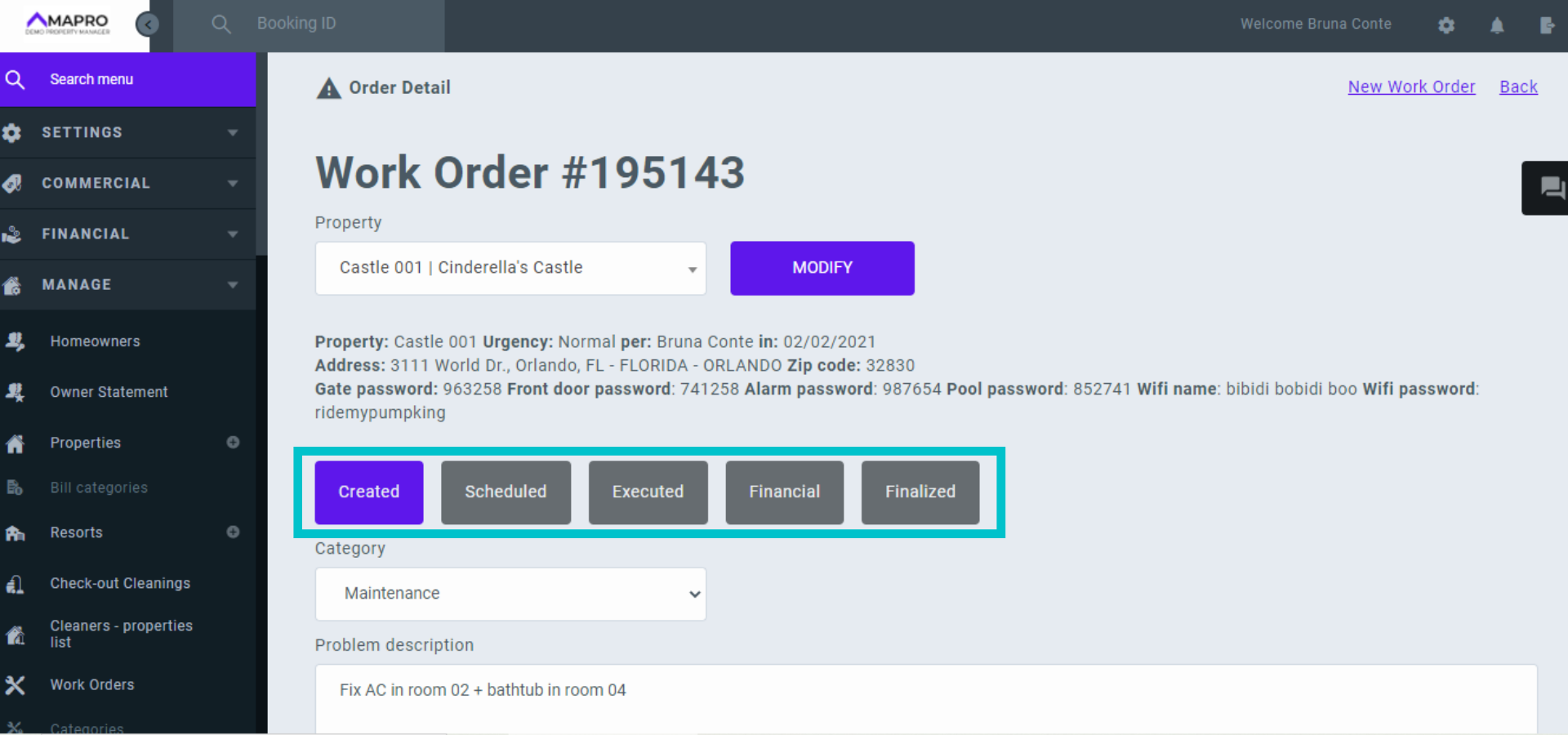
After you click on "Create New Work Order," the system opens a screen with 5 tabs: Create, Schedule, Execute, Financial, and Finalize.
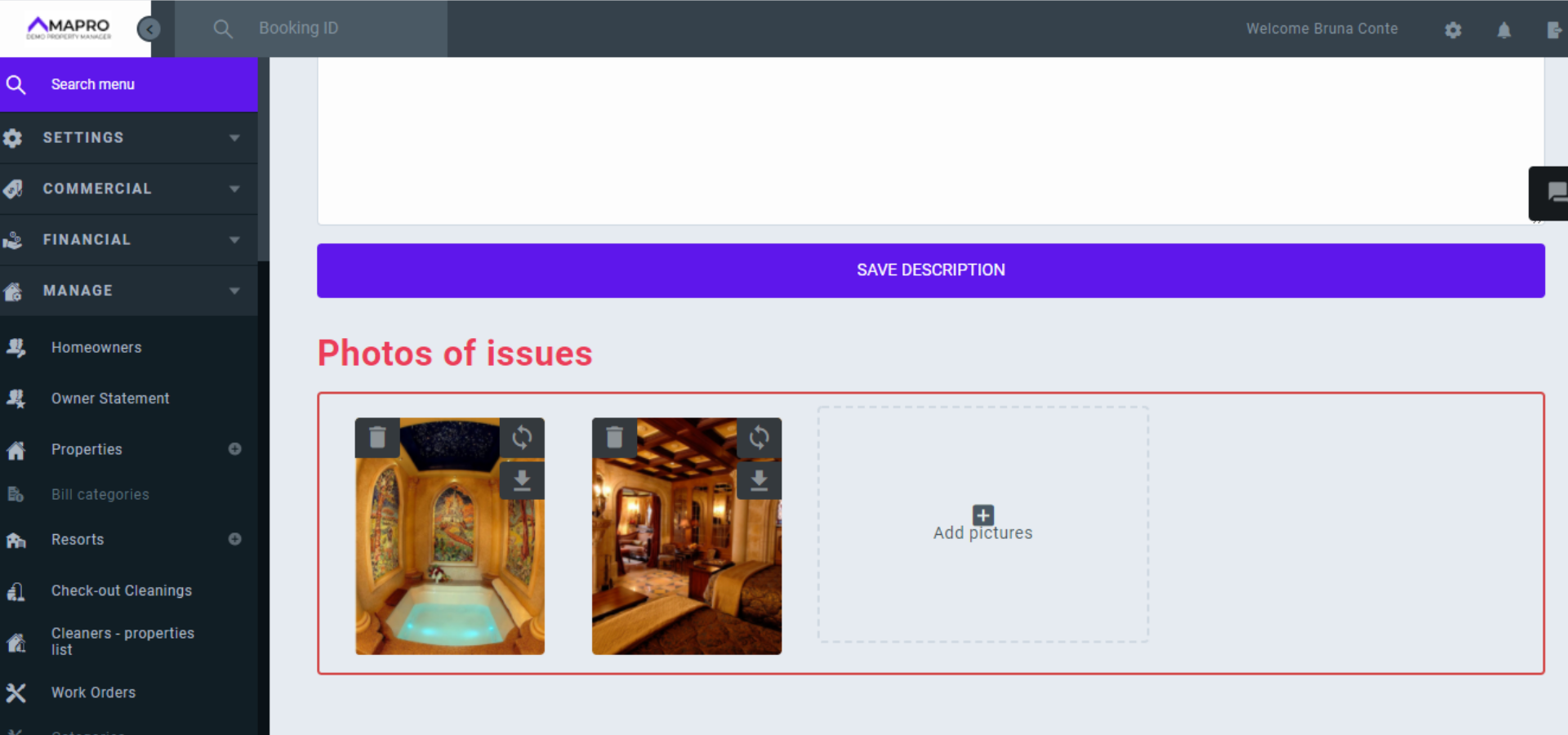
The tab "Create" contains the information registered on the first step, and you can add more details and photos to explain the problem. To add photos, click on the indicated area to upload files available on your device, or drag the file and drop it on the area.
Once you have finished creating the work order, you can move on to the next tab and schedule it. If you do not have the information to do it yet, save the order and schedule it later.
Read more:
How to enter the financial details and finalize a work order