
A work order is usually marked as "Executed" by the person who does the job. A property manager's employee with a MAPRO user registered will access the orders at MENU > MANAGE > WORK ORDERS. A company registered as a supplier will access them at MENU > CALENDAR. The visualization may change according to the permissions set by the property manager.
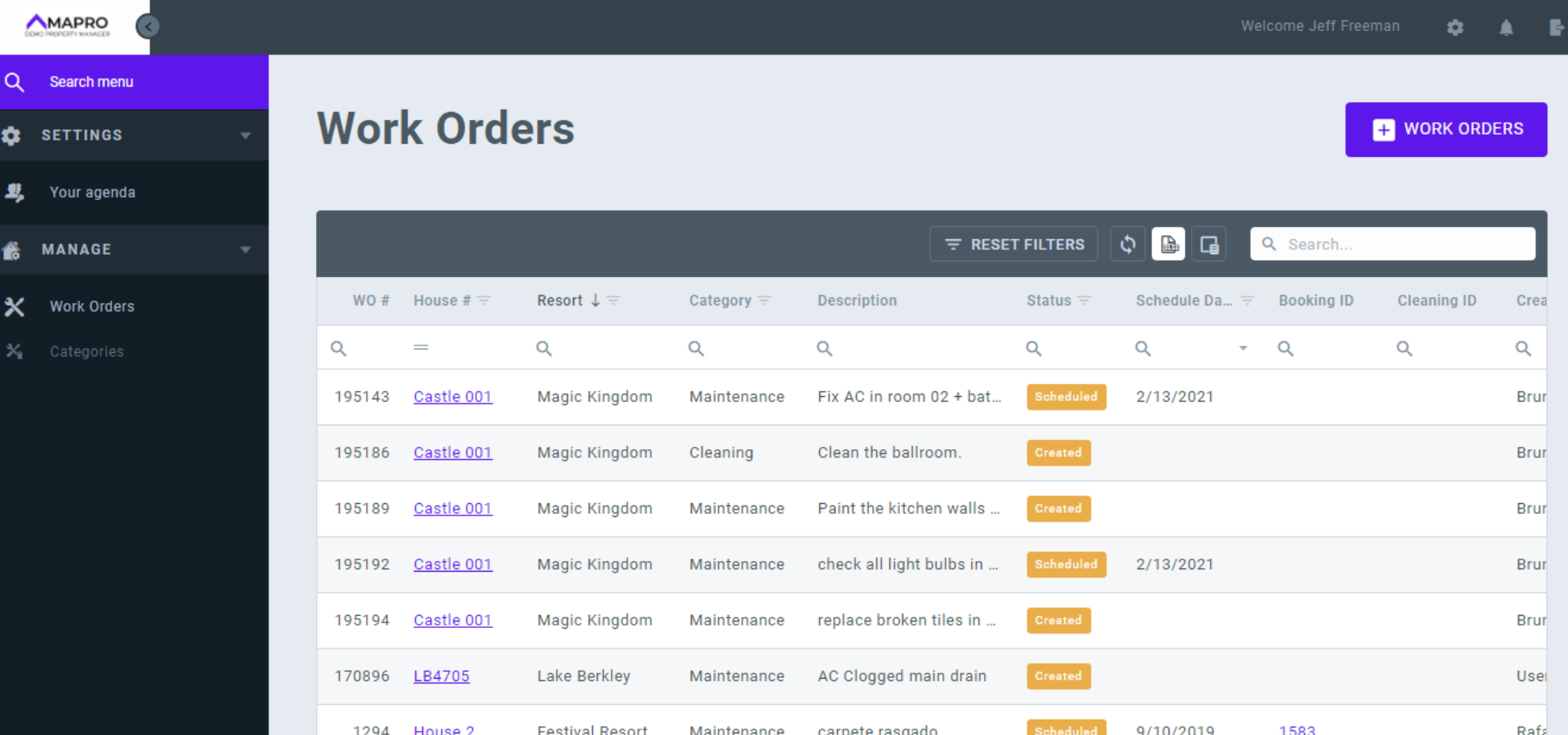
The user must open the request by clicking on the line of the work order and then follow the instructions below to fill it out:
- Products from stock used: if the property manager keeps products to be used for maintenance, it is necessary to inform which product and the quantity. Example: 5 light bulbs
- Description: add any relevant information related to the execution of the task.
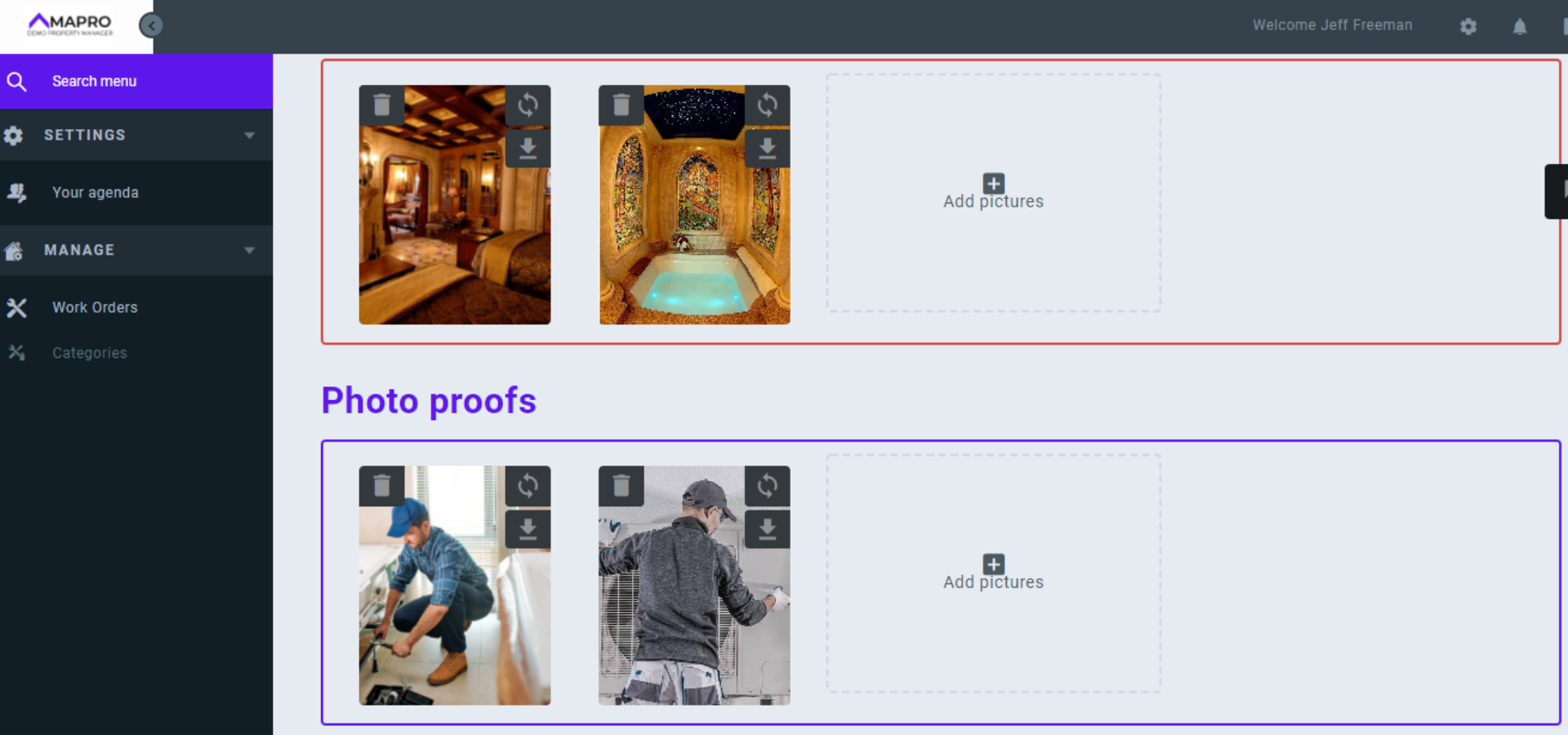
- Photo proof: to add photos that show the order has been executed, click on the designated area on the screen to upload images from your device, or drag the files and drop them on the screen.
- Invoices: if the person had to buy any items to complete the task, they could upload an image of the receipt in these fields. They must ensure they are using the correct field: "Visible to the homeowner" or "Internal Receipt" (visible to the property manager only).
Click on "Save executed order."
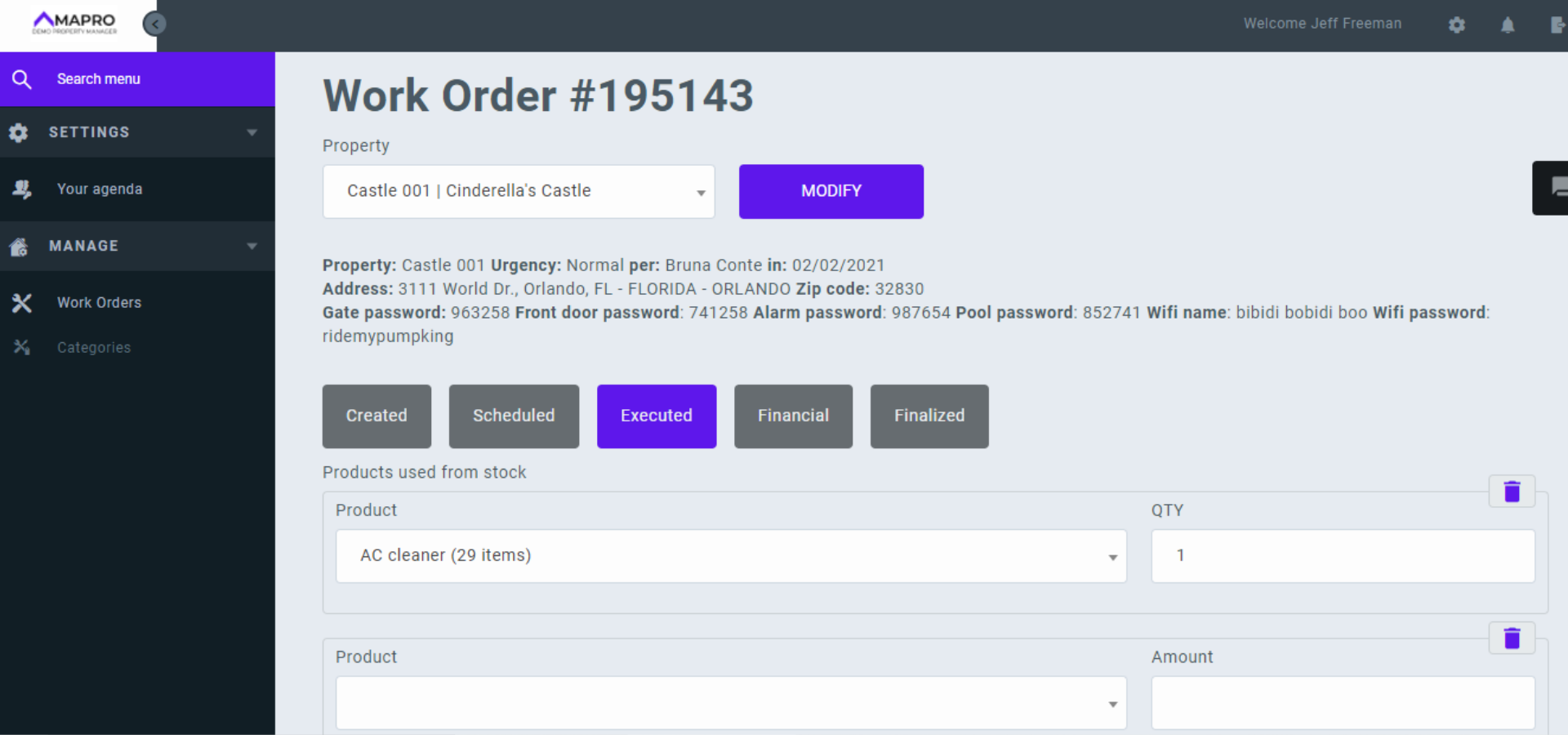
On MENU > MANAGE > WORK ORDERS, the status of the request will be changed from "Scheduled" to "Executed."
Important:
- If there is more than one order scheduled for the same visit, it is necessary to open each of them to inform the details and mark it as "Executed."
- If the person does any additional services that were not listed on the work order, and in case the user has the permission to create a new one (information set by the property manager), they can create a new order with the status "executed."